
How to Find Any Photo on Your iPhone When Apple Photos Search Fails You
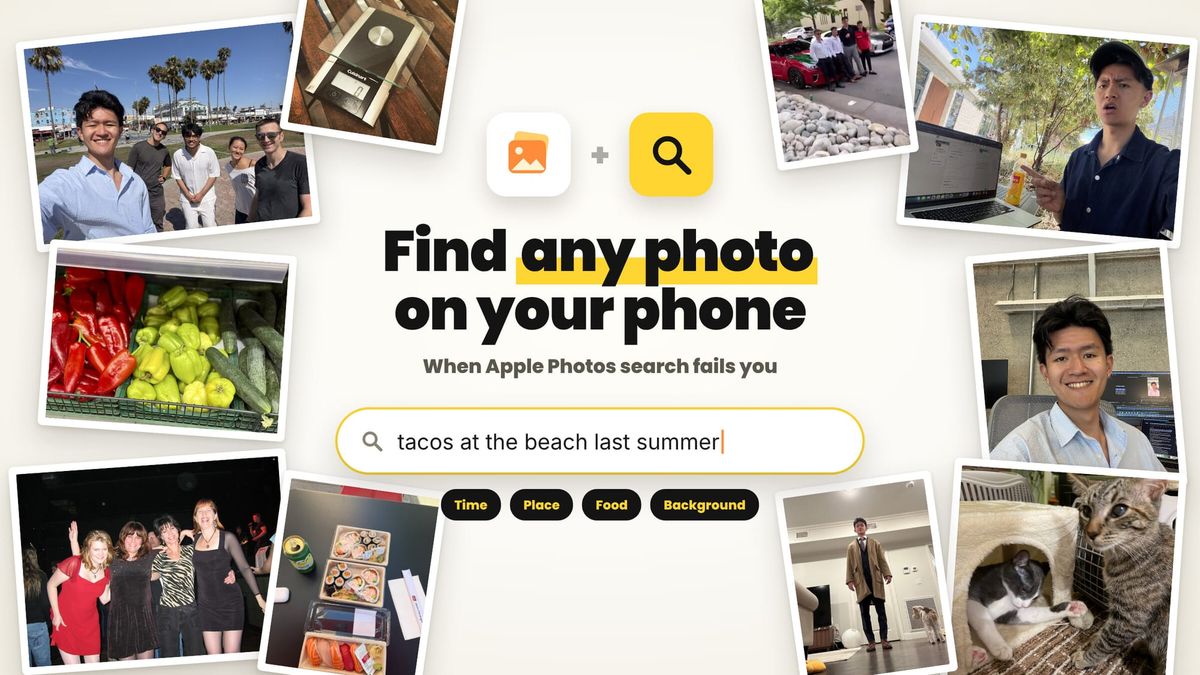
You know the photo exists. You can picture it: the tacos at that place in Austin, the sunset behind your friend's head, the whiteboard you snapped after a meeting last spring. You open Photos, type a word into search, and get nothing useful. Or worse, 400 results that are almost right.
The average iPhone holds thousands of photos, and many of us have tens of thousands. Are you going to spend those 5 minutes to scrolling through your entire camera roll?
This guide covers every trick to get more out of Apple Photos search, the workarounds for when it still comes up empty, and a better way to find photos the way you actually remember them.
Why Apple Photos search lets you down
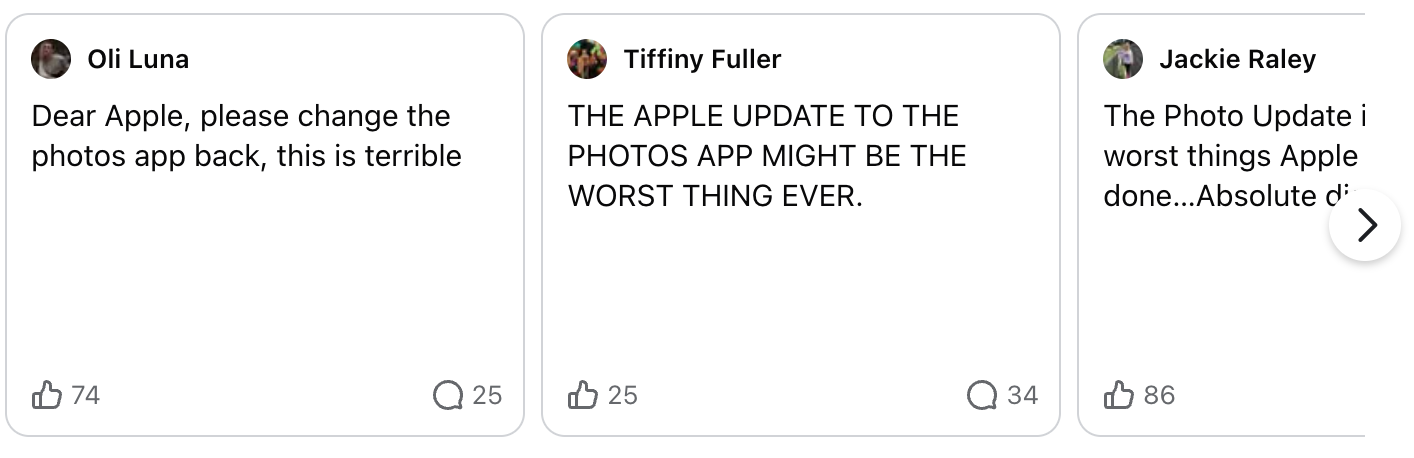
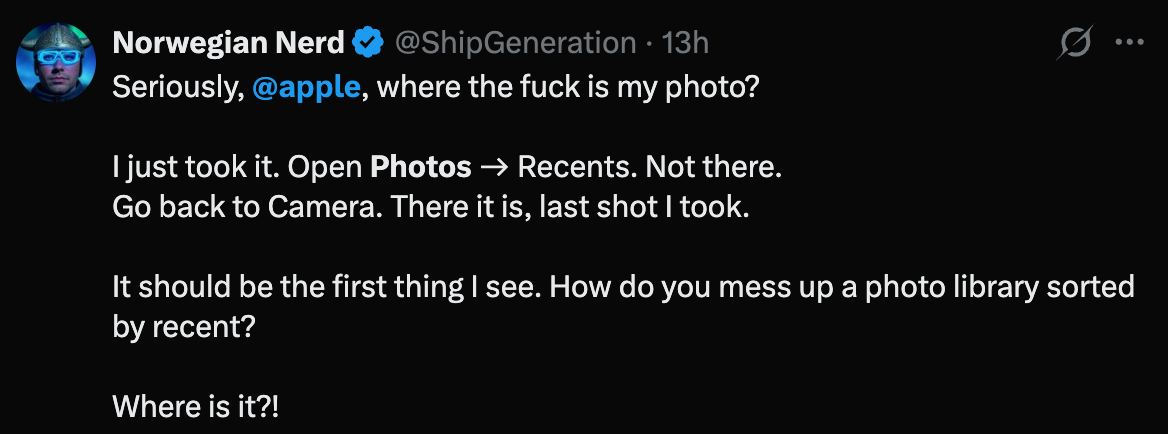
Here's the problem: we as humans think in memories, not keywords.
- Labels are super broad. "Food" returns every meal you've ever photographed. Specific dishes, styles of restaurant, or what was in the background often aren't tagged at all.
- Your memory isn't a keyword. You remember "the pasta we had on the rooftop the night before the wedding." Photos sees "food" and maybe a city.
- Combining details is hit or miss. Once you start typing a person, a place, and a time, results are often inconsistent.
6 ways to get more out of Apple Photos search
Before giving up on the Apple Photos app, try these.
- Stack filters one at a time. Type a place, tap the suggestion, then add a person or a month. Each tapped suggestion becomes a filter chip, which is more reliable than one long query.
- Search for text in the photo. Photos reads text in images, so a sign, a menu, a receipt total, or a street name can find the shot.
- Use the map. Browse Places on the map and zoom into the neighborhood where you took it.
- Name the people and pets. Open People & Pets and name the faces. Once named, you can search "Mom" or "Biscuit" and combine them with places and dates.
- Jump by time. Use the Years and Months views, or search a specific month and year ("June 2023"), to land near the moment and scroll from there.
- Check the utility albums. Screenshots, Recently Saved, Imports, Hidden, and Recently Deleted are where "missing" photos usually turn up.
When the built-in tricks still come up short:
This is why we built Auto Photos. Auto makes your camera roll intelligent by connecting it to AI. Instead of matching a word against a tag, Auto looks at what's actually in each photo and understands it the way you would.
That means you can search your entire camera roll, whether it's 1,000 photos or 100,000, based on a memory you have. Describe what you remember and Auto finds it:
- Time: "the weekend before Thanksgiving," "sometime last summer"
- Place: "that rooftop bar in Mexico City," "my grandparents' backyard"
- Type of photo: a selfie, a screenshot, a receipt, a group shot, a whiteboard
- Type of object: ramen, birthday cake, the oysters at the beach, a homemade pizza
- Background: "me in front of a mural," "the dog on the blue couch," "snow on the mountains behind us"
Mix and match as many details as you can recall. The more you remember, the faster you find it. No more endless scrolling and trying tons of keywords and filters, one by one.
What memory search looks like in practice
Here's how the same hunt plays out with keyword search versus Auto.
| What you remember | Typical keyword search | Search with Auto |
|---|---|---|
| Tacos at a food truck on a trip to Austin, maybe 2022 | "tacos" returns every Mexican meal you've had | "tacos from a food truck in Austin in 2022" |
| Your sister laughing in front of a big yellow wall | "sister" returns thousands of photos | "my sister laughing in front of a yellow wall" |
| A screenshot of a recipe from last winter | Buried among every screenshot you've taken | "screenshot of a soup recipe from last winter" |
| The birthday cake with sparklers at the lake house | "cake" or "lake" alone, never both | "birthday cake with sparklers at the lake house" |
| Your parking spot photo from the airport | Hopeless | "photo of a parking garage sign at the airport" |
Stop scrolling, start remembering
Apple Photos search is a solid starting point, and the tips above will help you find more with it. But when you're working from a memory, like how humans think, you need search that understands photos the way you do.
Auto Photos makes your camera roll intelligent, so you can find any photo, in any size library, just by describing what you remember: when it was, where you were, what kind of photo it was, what you ate, and what was in the background.
We also connect to your favorite AI agents like ChatGPT, Muse, and Claude.
Try Auto Photos free → and find that photo you've been looking for.